

OpenOps Slack Bot is a paid feature. See pricing for details.
- Workflows: Check what workflows are running, understand how they’re built, see what actions they use, and get help creating or modifying workflows.
- Workflow runs: Investigate run status, view history, troubleshoot failures, and understand execution details.
- FinOps insights: Ask questions about cloud costs, optimization opportunities, and FinOps best practices.
Prerequisites
- An active OpenOps account with access to at least one environment.
- A Slack workspace where the OpenOps bot is available.
- Your Slack account linked to OpenOps (see below).
Connecting Slack to OpenOps
Before you can use the bot in Slack, link your Slack account to OpenOps: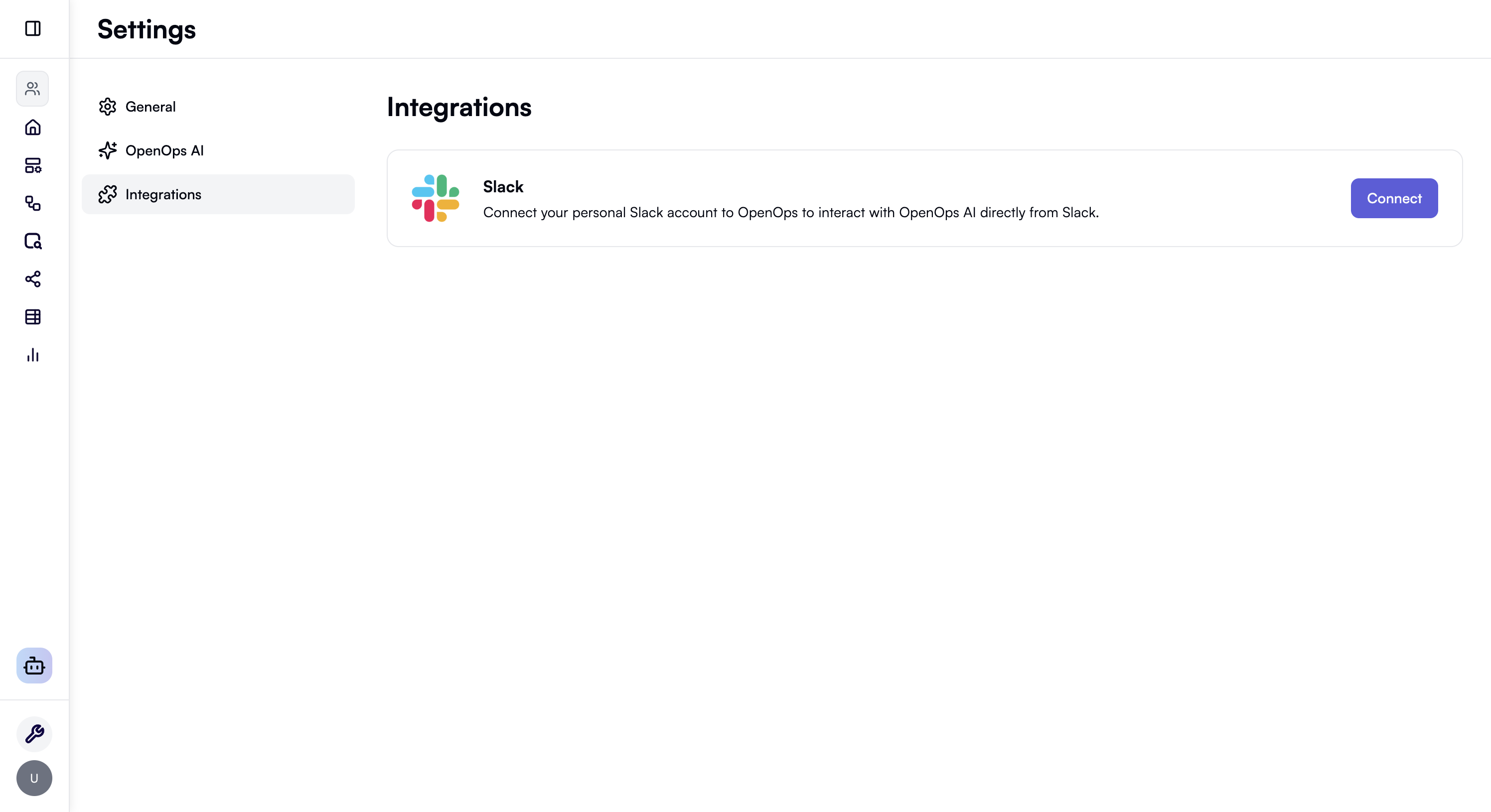
- Log in to your OpenOps dashboard.
- Go to Settings → Integrations.
- Click Connect to Slack.
- Complete the authorization in the Slack popup.
First-time workspace installation: If this is the first time the OpenOps bot is being installed to your Slack workspace, Slack may require approval from your workspace administrator. If you see a message requesting admin approval, you can close the popup. Once your administrator approves the installation, return to OpenOps and click Connect to Slack again using the same steps above.
Using the bot in Slack
You can interact with the OpenOps bot in two primary ways, plus several other methods for different scenarios.Chat in split view
To work in Slack and interact with the bot simultaneously, start a chat that opens on the right-hand side of Slack on desktop or in a browser.- From your desktop, click the OpenOps agent or assistant icon in the top right-hand corner of Slack. If there are multiple agents or assistants available, click the down arrow to choose the OpenOps bot.
- Send a message to get started.
- To view your message history, click the clock icon.
- Environment – If you have access to more than one environment, the bot asks you to choose one. With a single environment, this step is skipped.
- Project – Next, you choose a project. Again, this is skipped if you only have one.
- Response – The bot confirms and then streams its response in real time.
Chat from the app’s Home tab
You can also start a conversation with the bot from the OpenOps app’s Home tab.- From your desktop, click Tools in the sidebar. If you don’t see this option, click More to find it.
- Click Apps, then search for and select the OpenOps Bot app.
- A side pane opens with the app’s information. Click Open app.
- Click New chat in the top right-hand corner, or click the Chat tab to resume a conversation.
- To view your chat history, click on the History tab.
Other ways to interact
@Mention in channels
Mention the bot in any channel where it’s installed to start a conversation that everyone in the channel can see. Useful when several people need the same information.Thread ownership: Once you start a conversation by @mentioning the bot, the thread is bound to your account. Other users cannot reply in that thread—they’ll need to start their own thread with a new @mention to interact with the bot. You can continue the conversation by replying in the same thread, and the bot will maintain context throughout.
”Ask OpenOps Agent” shortcut
You can send an existing thread to the OpenOps agent for analysis:- Right-click (or click the three dots …) on a message in the thread.
- Choose Shortcuts → Ask OpenOps Agent.
- In the modal, enter your question about the conversation.
- Click Ask.
Slash commands
The bot supports slash commands for environment and channel defaults. Responses are ephemeral (only you see them).| Command | Purpose |
|---|---|
/openops-list-environments | List OpenOps environments linked to your Slack account. |
/openops-set-default | Set the default environment and project for the current channel. |
/openops-show-default | Show the channel’s default environment and project. |
/openops-clear-default | Clear the channel default. |
Channel defaults
Channel defaults set a shared environment and project for a channel so the bot doesn’t ask every time. Why use them- Fewer steps: no environment/project selection for each new conversation.
- Everyone in the channel uses the same environment.
- Reduces mistakes from picking the wrong environment.
- Open the channel.
- Run
/openops-set-default. - Pick the environment and default project.